Browser-Based Controls (BRC)
for Sketches in Processing (Java)
Version 1.01
Peter Brooks, Dec., 2021
(pbrooks [at] micromind.com)
http://www.micromind.com
What are these controls?
plus Video examples/tutorials
| What are browser-based controls? | These are controls, like buttons,
dropdowns, checkboxes, sliders (ranges), etc. that live inside a web page
and can control
actions running inside a Processing sketch animation. The program that creates these controls for you and handles all the communications is called BRC_Factory and can be used via a free web-service, and is also available as an open-source (Python 3.x) program free for downloading (see below). The same open-source code powers the web-service. The program creates the entire webpage for you (all the HTML and Javascript) based on a simple text file that you write. It also creates all the Processing code to handle the communications between the webpage and your sketch. For instance, to create 2 buttons to control your sketch's animation, you create a tiny text file with 2 lines of text requesting the two buttons. Run that text file through the BRC_Factory program which manufactures a .pde file to include in your sketch folder. You add a few lines of Processing code (as few as 5) to your sketch to handle the desired actions when the buttons are pressed. Then run your sketch, and launch a small browser window, and send it to the address: 127.0.0.1:10002. At this point you'll have a fully functioning pair of buttons controlling your sketch. |
| What are the controls that this program can
create? Here is a snapshot of the types of controls |
With the BRC_Factory program, the program can create, inside a webpage:
In addition, we can create "Monitors" in the webpage which can
retrieve and display numerical or
textual data from inside a running Processing sketch, and will automatically update
the display of this information as the data changes (for instance:
dynamically displaying the current coordinates of your mouse). |
| Quick Intro... Video |
This short video will display all of the controls that this program can produce. |
| Video tutorial-1 |
This is a video tutorial on how to get started --
Adding buttons to control your animations.
|
| Video tutorial-2 | This is a longer video tutorial showing all of
the different types of controls that BRC can handle. Also shown are Monitors with which your sketch can publish/display internal information in real-time. Here is the BRCDemo2 folder containing all files shown in this video. |

BRC_Factory
| ... as a Web Service... | |
| BRC_Factory | This is the service that converts your text file
(containing the details of the controls that you want) into the
Processing file necessary for use with your Processing sketch. |
| ... or download as a Python (3.x) program ... | |
| BRCFactory.zip | Usage: python BRCFactory.py {path/}template.txt will produce the BRC_Utilities.pde file in the same folder as your template.txt file |
Documentation
| The contents of the Text file that you will write: | ||
| Purpose | Example | |
| PDEFIILE: (optional) This is the output filename of the Processing .pde file containing communication functions (which will be created by the BRC_Factory program). Default is "BRC_Utilities.pde" if not specified. | PDEFILE,harry.pde | |
| LAYOUT: (optional) Layout of the controls. Possibilities: VERTICAL or HORIZONTAL Default is HORIZONTAL if not specified. |
LAYOUT,HORIZONTAL | |
| PORT: (optional) PORT number. Default is 10002 if not specified. |
PORT,10008 | |
| Button:
choose an id (with no spaces) and possibly a LABEL as well "slower=14432" might be transmitted when this button is pressed (a random number would be sent) |
TYPE,BUTTON,slower TYPE,BUTTON,slower slower,LABEL,Slow me down! |
  |
| Checkbox: 2 lines: (a name, and a LABEL) "wave-1=true" or "wave-2=false" will be transmitted when the user changes these checkboxes |
TYPE,CHECKBOX,wave-1 wave-1,LABEL,Undulate TYPE,CHECKBOX,wave-2 wave-2,LABEL,Wavely,checked |
 |
| Dropdown: 2 lines (a name and a LABEL) plus one
line for each option Each option line consists of name,OPTION,value,display and name=value will be transmitted. For instance: "folks=H" would be transmitted by this dropdown if "Hermione" is chosen |
TYPE,DROPDOWN,folks folks,LABEL,The Committee folks,OPTION,F,Fred folks,OPTION,G,George folks,OPTION,H,Hermione,selected folks,OPTION,P,Ron |
 |
| Radio buttons 2 lines: (a name and a LABEL) plus
one line for each option. Each option line consists of name,OPTION,value,display and name=value will be transmitted. For instance: "weapon=SW" would be transmitted by this radio button set if the Sword button is selected |
TYPE,RADIO,weapon weapon,LABEL,Death by... weapon,OPTION,SW,sword weapon,OPTION,G,gun weapon,OPTION,I,insult,checked |
 |
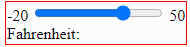
| Range (slider): 2 lines: (a name and a LABEL)
plus 4 lines for the range's settings: MIN, MAX, STEP and VALUE. All settings must be integers. MIN <= VALUE <= MAX STEP should divide (MAX - MIN) evenly "temperature=30" would be transmitted if the slider is moved to 30 |
TYPE,RANGE,temperature temperature,LABEL,Fahrenheit temperature,MIN,-20 temperature,MAX,50 temperature,STEP,10 temperature,VALUE,30 |
 |
| Text box: 2 lines: (a name and a LABEL) "fname=George the first" would be transmitted by this text box if that's the text written into it |
TYPE,TEXT,fname fname,LABEL,First name |
 |
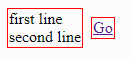
| Note: 2+ lines (a name and one
or more LABELS) This is for display. LABELs can be text, including multi-line, and/or valid HTML |
TYPE,NOTE,one one,LABEL,first line one,LABEL,second line TYPE,NOTE,two two,LABEL,<a href="https://google.com">Go</a> |
 |
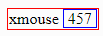
| MONITOR: 2 lines: (a name and a
LABEL) The sketch will transmit a value into this box (reverse communications) |
TYPE,MONITOR,x x,LABEL,xmouse |
 |
| Comments: Comments
inside the template file start with 2 slash characters: // and reach until the end of the line. They can be placed anywhere. |
TYPE,BUTTON,flop // silly name but whatever... | |
| Steps to create a running sketch with controls | |
| 1. Create your Processing sketch | |
| 2. Create your template file | This will contain all of the requests for the controls you want, and their properties (like the limits of a RANGE control, or the OPTIONS for a radio button group) |
| 3. Use BRC_Factory to create your BRC_Utilities.pde file | If you're using the web-service, go to the
link, submit your template file, and then download the resulting
file (named BRC_Utilities.pde) to your sketch's folder. Make
sure that your web browser doesn't change the filename. If you're using the Python file, make sure it creates the BRC_Utilities.pde file in your sketch's folder. |
| 4. Add code to your sketch to modify its actions when control messages arrive | |
| 5. Run your sketch | |
| 6. Launch a small browser window, and go to address 127.0.0.1:10002 | |
| ...everything should be running... | |
| Modifying existing templates | |
| 0. we can skip some steps because much is already in place | |
| 1. Edit your existing template file to add, delete or modify controls | |
| 2. Submit the template file to BRC_Factory, and download the resultant BRC_Utilities.pde file overwriting the old version of the file. | Make sure that the download name is
BRC_Utilities.pde -- some browsers like to add digits to the name to
prevent overwriting older files. But in this case, we do want
the older file overwritten. Note that the Processing program will automatically reload the new version once it appears in the folder (a nice feature -- at least in Windows 10 and Mac OS). |
| 3. Make any changes to your sketch's code | |
| 4. Run your sketch | |
| 5. If you already have a small browser window showing you controls, simply refresh it. | |
| Notes | |
 |
|
| The values of the controls are always available. | Your code need not wait for a change of value
for a control to know what the current value of a control is. For instance, suppose you have a checkbox named "clear". You can query the value of that checkbox (using brcValue("clear")) at any time. Whenever the value of that checkbox changes in the browser, the browser sends the current value to BRC_Utilities, and that value is received and stored thereafter, until it's changed again by a new incoming value. Of course, it's usually (but not always) important to know when a control changes value, and to act on it immediately. In that, usual, case, you should wait until that control sends a change message, which you can detect with: String name = brcChanged(); if (name.equals("clear")) do something depending upon the value ("true" or "false") sent by the checkbox. |